Showing posts with label Javascript. Show all posts

A jQuery Mobile Address plugin

While playing around with jQuery Mobile and wondering about the support for the new HTML5 input types I realized there wasn't an address extension that was just as easy to use a date picker was for dates. So I wrote an address plug-in.

Adding Google Maps to an input element

The idea is very simple: addresses are text just like an e-mail address or an url. HTML5 makes it possible to identify this a input element types and jQuery Mobile acts on these types as well to display custom widgets for these elements.

I wanted an address type: an input element with that type would allow the user to enter an address or a click on it would open an interactive map. Clicking on a location in that map would fill in the address under the cursor. Writing such a plug-in was a fine exercise in both jQuery Mobile and the Google Maps API and the first results are documented on my website as part of the Erica Web Application framework.

A jQuery plugin to add icons to elements

In this article I present a simple jQuery plugin that adds suitable icons to a selection of elements based on the value of the rel attribute.

CSS3 :after selector not suitable?

If the target browser understands CSS3 we could add an icon with the help of the :after selector. This has a couple of disadvantages though:

  • Only the newest browsers support this,
  • Although it is possible to insert a url that points to an image, this element is magic, i.e. not visible in the DOM, so we cannot style it with CSS,
  • We can select elements based the contents of an attribute but we cannot construct and element based on the result of this selection.
Fortunately a flexible yet simple solution can be crafted in a few lines of Javascript with the help of the jQuery library.

The iconify plugin

The code presented below assumes that jQuery is already loaded. It is tested with jQuery 1.6.1 but should work with earlier versions just as well. Using the plugin is as simple as $("a").iconify();. This will add an icon (an <img> tag) to every link, if any of those links has a rel attribute. You need to provide a directory with suitable icons. For example, if you have links with rel="python", an icon will be added with a src attribute of src="Icons/python-icon.png"

The plugin can be broken down to a few simple steps. The first it does (in line 2) is to make sure the selection is a jQuery object. The next two lines make sure that if any of the parameters is missing the corresponding default is used.

In line 6 we then iterate over all elements of the selection and retrieve the rel attribute (line 8). If this attribute is present and not empty, we check if it can be found in the iconmap object, if not we construct a generic name (line 13). Next we construct an <img> element with a suitable src attribute and a meaningful alt attribute and add this element to the current element in the iteration. Finally (line 24) we return the original selection to allow this plugin to be chained just like most jQuery functions.

$.fn.iconify = function (icondir,iconmap) {
 var $this = $(this);
 icondir = icondir || $.fn.iconify.icondir;
 iconmap = iconmap || $.fn.iconify.iconmap;
 
 $this.each(function(i,e){
  e=$(e);
  var rel=e.attr('rel');
  var src="";
  var alt="";
  
  if(rel !== undefined && rel != ''){
   if(iconmap[rel]!==undefined){
    src='src="'+icondir+'/'+iconmap[rel]+'"';
   }else{
    src='src="'+icondir+'/'+rel+'-icon.png'+'"';
   }
   alt='alt="'+rel+' icon"';
   var img=$('');
   e.append(img);
  }
 });
 
 return $this;
};
$.fn.iconify.icondir='Icons';
$.fn.iconify.iconmap={
'python' :'python-logo-24.png',
'blender' :'blender-logo-24.png',
'photo'  :'camera-logo-24.png',
'wikipedia' :'wikipedia-logo-24.png'
};

The CSS rel attribute

Using the rel attribute for this purpose might be considered misuse (see for example this page) so you might consider rewriting the plugin to check another attribute, for instance class.

Visualizing Python call graphs with jsPlumb

When analyzing or debugging complex code it can be a great help to have a call graph at your disposal. In this article we look at Python's bundled trace module to generate a call graph and at jsPlumb, a Javascript library to render an interactive visual representation.

Trace can do more than coverage analysis

In a previous article we saw how we could use Python's trace module to see which lines in in our code where actually executed when we run some function. The same module can provide us with a list of functions that are called by other functions. This is as simple as providing some extra parameters as can be seen in the example code below:
import trace
 
t=trace.Trace(count=1,trace=0,countfuncs=1,countcallers=1)
t.runfunc(f)
r=t.results()
This snippet will run the function f and in the end we will have a CoverageResults object in r. We can print these results with the write_results() method but a more graphical representation is preferred. Now the underlying data structures are not well documented some inspection and examination of the source code shows that we have a member called callers that hold a record of which function called which. It is a dictionary with a a complex key and a simple value: the value contains a count of how many times in a function another function is called, the key is a tuple of tuples (caller, callee) where eacht member has three parts: (module, filename, functionname). Lets see how we can use this information to visualize the call graph.

jsPlumb
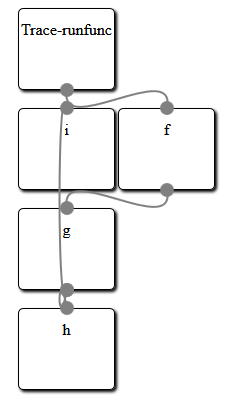
The idea is to represent each function as a simple box and draw lines to indicate which function calls which other function. Now we could try to build an application based on some graphics library but rendering graphical boxes is something web browser are good at, so why not use HTML to represent our graph and a web browser to render the stuff? All we need is some way to draw attractive lines connecting those boxes. Enter jsPlumb, a versatile Javascript libraray to do just that. And a lot more as well: once a graph is drawn it lets you interact with the boxes to rearrange them as you see fit.
The example code provided at the end of this article will generate a number of div elements, one for each Python function encountered. It also generates a bit of Javascript to let jsPlumb draw its connecting lines. The HTML produced looks like this:
<html><head>
<script type="text/javascript" src="http://explorercanvas.googlecode.com/svn/trunk/excanvas.js"></script>
<script type="text/javascript" src="http://ajax.googleapis.com/ajax/libs/jquery/1.4.4/jquery.min.js"></script>
<script type="text/javascript" src="http://ajax.googleapis.com/ajax/libs/jqueryui/1.8.2/jquery-ui.min.js"></script>
<script type="text/javascript" src="jquery.jsPlumb-1.2.5-all-min.js "></script>
<link rel="stylesheet" href="callgraph.css" type="text/css" media="all" />
</head><body>
<div id="i" class="box" style="left:200px;top:200px">i</div>
<div id="h" class="box" style="left:200px;top:400px">h</div>
<div id="Trace-runfunc" class="box" style="left:200px;top:100px">Trace-runfunc</div>
<div id="g" class="box" style="left:200px;top:300px">g</div>
<div id="f" class="box" style="left:300px;top:200px">f</div>
<script>
jsPlumb.Defaults.Connector = new jsPlumb.Connectors.Bezier(50);
jsPlumb.Defaults.DragOptions = { cursor: 'pointer', zIndex:2000 };
jsPlumb.Defaults.PaintStyle = { strokeStyle:'gray', lineWidth:2 };
jsPlumb.Defaults.EndpointStyle = { radius:7, fillStyle:'gray' };
jsPlumb.Defaults.Anchors = [ "BottomCenter", "TopCenter" ];

$("#Trace-runfunc").plumb({target:"f"});
$("#g").plumb({target:"i"});
$("#f").plumb({target:"g"});
$("#g").plumb({target:"h"});
</script>
</body></html>
It consists of a number of script tags to include the jQuery library and jsPlumb together with the explorer canvas so everything will work on Internet Explorer just as well.
Next is a list of div elements with a box class and a final script elements that calls the plumb method for each connection. This final bit of Javascript is preceded by a few lines that set some default for the lines that will be drawn. These are fully documented on the jsPlumb site.
When this HTML and Javascript is viewed with a webbrowser the result looks something like the image preceding the HTML sample code. Creating a layout for a graph where nothing overlaps is a difficult job and clearly fails here, but the beauty of jsPlumb is that it provides an interactive graph: you can click and drag any box on the screen to rearrange the graph in any way. An example is shown in the image on the left where we have dragged about some of the boxes to provide a clear separation.

From CoverageResults to an interactive graph

So our problem boils down to generating suitable HTML and Javascript from the data provided in the CoverageResults object. I'll provide the full code without much explanation as it should be clear enough. It certainly isn't a sterling example of clean coding but it works:
def f():
 for i in range(10):
  g(i)
  
def g(n):
 return h(n)+i(n)

def h(n):
 return n+10

def i(n):
 return n*8
 
def box(name,pos=(400,300)):
 return ('<div id="%s" class="box" style="left:%dpx;top:%dpx">%s</div>'
   %(name,pos[0],pos[1],name))

def connect(f,t):
 return '$("#%s").plumb({target:"%s"});'%(f,t)

if __name__ == "__main__":
 import trace
 from random import randint
 
 t=trace.Trace(count=1,trace=0,countfuncs=1,countcallers=1)
 t.runfunc(f)
 r=t.results()

 print("""<html><head>
<script type="text/javascript" src="http://explorercanvas.googlecode.com/svn/trunk/excanvas.js"></script>
<script type="text/javascript" src="http://ajax.googleapis.com/ajax/libs/jquery/1.4.4/jquery.min.js"></script>
<script type="text/javascript" src="http://ajax.googleapis.com/ajax/libs/jqueryui/1.8.2/jquery-ui.min.js"></script>
<script type="text/javascript" src="jquery.jsPlumb-1.2.5-all-min.js "></script>
<link rel="stylesheet" href="callgraph.css" type="text/css" media="all" />
</head><body>""")

 boxen={} # unique names, values are positions
 for f,t in r.callers:
  fk=f[2].replace('.','-') # identifiers with dots cannot be used as (x)html ids
  tk=t[2].replace('.','-')
  if not fk in boxen:
   boxen[fk]=[200,100]
  if not tk in boxen:
   boxen[tk]=[200,100]
  boxen[tk][1]=boxen[fk][1]+100
 for b in boxen:
  for b2 in boxen:
   if b != b2 and boxen[b] == boxen[b2]:
    boxen[b2][0]+=100
 for b in boxen:
  print(box(b,boxen[b]))

 print("""<script>
jsPlumb.Defaults.Connector = new jsPlumb.Connectors.Bezier(50);
jsPlumb.Defaults.DragOptions = { cursor: 'pointer', zIndex:2000 };
jsPlumb.Defaults.PaintStyle = { strokeStyle:'gray', lineWidth:2 };
jsPlumb.Defaults.EndpointStyle = { radius:7, fillStyle:'gray' };
jsPlumb.Defaults.Anchors = [ "BottomCenter", "TopCenter" ];
""")
 for f,t in r.callers:
  fk=f[2].replace('.','-')
  tk=t[2].replace('.','-')
  print(connect(fk,tk))
 print("</script>")
 print("</body></html>")

Python and Javascript, using the Flot plugin, part 6

In the sixth installment of this series we look at how we can make the graph more interactive by making full use of the extensibility of the Flot plugin.

Creating interactive plots

The Flot plugin mimics most other jQueryUI plugins in that although it works perfectly well without any configuration options it also provides a number of ways to extend its functionality. Here we will see how we may attach a hovering label to any point in the graph, something that may prove useful if the graph consists of many points. An example is shown in this image (the mousepointer itself is not visible in this screenshot):

  var p = $.plot($("#tempandwind")  ,da ,{
    series: { lines: { show: true }, points: { show: true } },
    xaxis : { mode:"time",ticks:12,twelveHourClock:false},
    y2axis: { position:"right"},
    grid  : { hoverable: true }
  });

  $("#tempandwind").bind("plothover",highlight);

The Flot plugin does not generate the custom plothover events by defaults so we need to turn that on as can be seen in line 5. With plothover events enables we can now bind a function to this event as can be seen in the last line.

The Flot website shows a number of interesting examples on how to enhance an extend the Flot plugin. The highlight() we define here is a slightly adapted version of some of the Javascript behind this example. Lets have a look at our implementation:

var previousPoint = null;

function highlight(event, pos, item) {

  if (item) {
    if (previousPoint != item.dataIndex) {
      previousPoint = item.dataIndex;

      $("#tooltip").remove();
      var y = item.datapoint[1].toFixed(2);
               
      showTooltip(item.pageX, item.pageY,
        item.series.label + " = " + y);
    }
  } else {
    $("#tooltip").remove();
    previousPoint = null;   
  }
};

Any function bound to the plothover event is passed three arguments: an event object, the position in the canvas and an item argument that holds graph specific data, i.e. the x and y values of the datapoint that we are hovering above, its coordinates in the canvas and the label of the dataseries that the point belongs to. If item is null or undefined we are not hovering above a datapoint. We check for this in the code and remove the tooltip if so.

Because we do not want to redraw the hovering information if we are still above the same data point we check if the index in the series of datapoints is different from the one we stored in the global variable previousPoint. If this is the case, we remove the tooltip, convert the value of the datapoint to a number with only two decimals to keep things readable and call the showTooltip() function to draw the a label at to correct position.

function showTooltip(x, y, contents) {
  $('
' + contents + '
').css( { position: 'absolute', display: 'none', top: y + 5, left: x + 5, border: '1px solid #fdd', padding: '2px', 'background-color': '#fee', opacity: 0.80 }).appendTo("body").fadeIn(200); };

The showTooltip() function is straight from the example on the Flot page but deserves some explanation because it shows off some nifty jQuery features.

It creates a div element ans styles it directly with the css() method. Its display attribute is initially none as the element is added to the body element with the appendTo() method but is made gradually visible with the fadeIn() method. Each of these methods returns the element it is operating on so all methods can be chained.

Python 3 Web Development Beginner's Guide, published!

Work on my new book, Python 3 Web Development Beginner's Guide, is done and both the e-book version and the print version are now available.

Python 3 Web Development Beginner's Guide is available now. Both the e-book version and the print version are now available on the publishers website as well as on the websites of the major on-line book stores.

Writing the book was hard work, but the attention and skills of the people at Packt Publishing and the reviewers of the book were a great help. Kudos to them!

Javascript syntax highlighting on Blogger without external hosting

Using Alex Gorbatchev's Javascript syntax highlighter is very simple to use and useful for about any language, including Python but most recipes for integrating it in Blogger depend on access to an external location to host the Javascript files. In this article I show you how to integrate syntax highlighting into your Blogger page without the need to host anything externally.

Note: I only managed to get it to work for the old version (1.5.x) but as you can see on my blog that version is still eminently usable. As you will see there is no particular reason why the approach sketched below won't work for newer versions and I will look at it again but for now we'll make do with what works.

Step by step installation of the syntax highlighter in Blogger

  1. Download the package from Google Code
  2. Unpack the rar file
  3. Add a HTML/Javascript gadget to your Blogger layout (near the end of your page, e.g. in the footer)
  4. Copy the contents of the Javascript files you need to this gadget
  5. Add a extra line of Javascript to actually convert code fragments
  6. Copy the contents of the CSS stylesheet into Bloggers advanced CSS configuration
The rar file can be unpacked with most unzip tools, 7zip worked for me (on Windows). The minified Javascript files we need are in the Scripts folder. You need to copy the contents of at least the file shCore.js plus the contents of any file suitable for the languages you want to highlight in your blog. For this blog I copied shBrushPython.js to start.

The HTML/Javascript is available from Bloggers gadget menu when you click on a a 'add gadget' link. It allows you to insert arbitrary HTML and Javascript into your Blogger pages. If you add or edit the HTML/Javascript gadget it opens a simple text editor where you can insert the code. Make sure that you embed any code that you copy inside a pair of script tags. Add the contents of shCore.js first, followed by the contents of the other files. Finish with a line like dp.SyntaxHighlighter.HighlightAll('code');. The resulting contents need to look something like this:

<script>
... contents of shCore.js ...
... contents of shBrushPython.js ...
dp.SyntaxHighlighter.HighlightAll('code');
</script>
Note that the HTML/Javascript gadget needs to be near the end of the page because any code you want to highlight should already be loaded once the HighlightAll() method is called. You can of course arrange to have this method called in an onLoad event, in which case you can probably choose to place the gadget anywhere.

The final step is to open Blogger's template editing page. Select Advanced from the left most column and then select Add CSS from the column next to it. This will open up a text editor where you can insert the contents from the file SyntaxHighlighter.css (it can be found in the Styles directory). Click Apply to Blog and you're done.